Overview
As a part of the new hub deployment process, we must make some checks to ensure the platform is functioning end-to-end correctly. One of these checks is to make a test payment. This SOP details the steps to make a test payment and verify that it was successful.This must be done ONCE per hub deployment. If more than one is required, contact Matt/finance to inform and confirm.
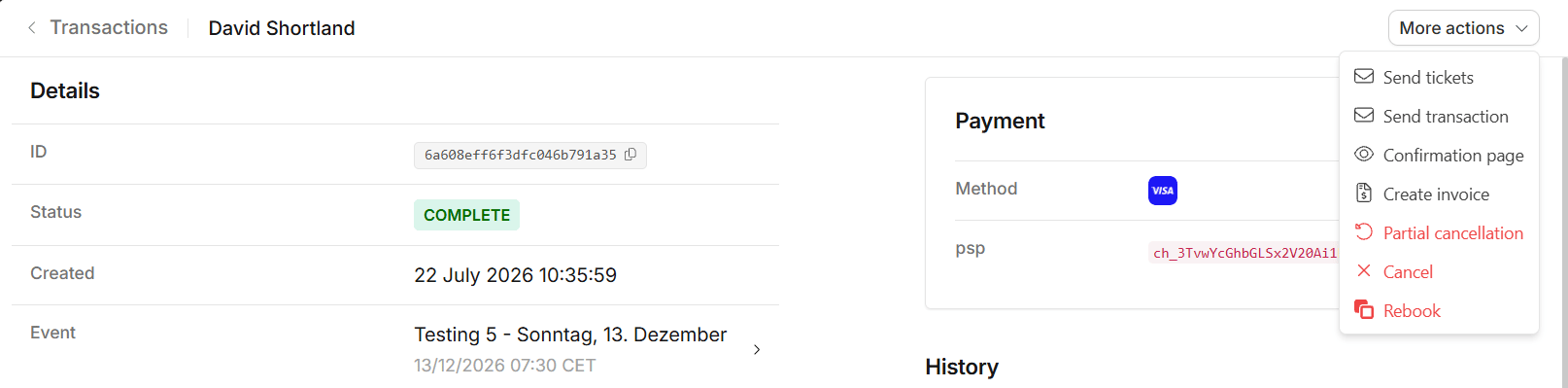
The images below are taken from the DEV environment, not PROD, hence the larger amounts and different URLs.
Prerequisites
- All previous development team and deployment team steps have been completed.
- The hub is enabled in the database configuration.
Making a Test Payment
1
Create a new event
In the new PROD seller, create a new event with the following details:
2
Save
Click Save to apply the changes.
3
Make the checkout
Copy the new event’s ID.
Then, in a new browser tab, navigate to the checkout page for the event using the following URL format:
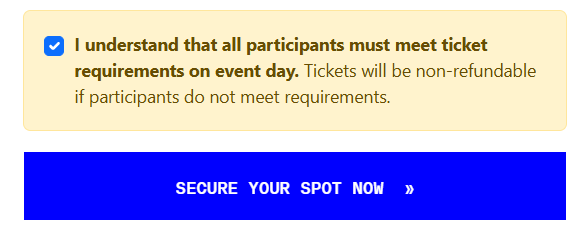
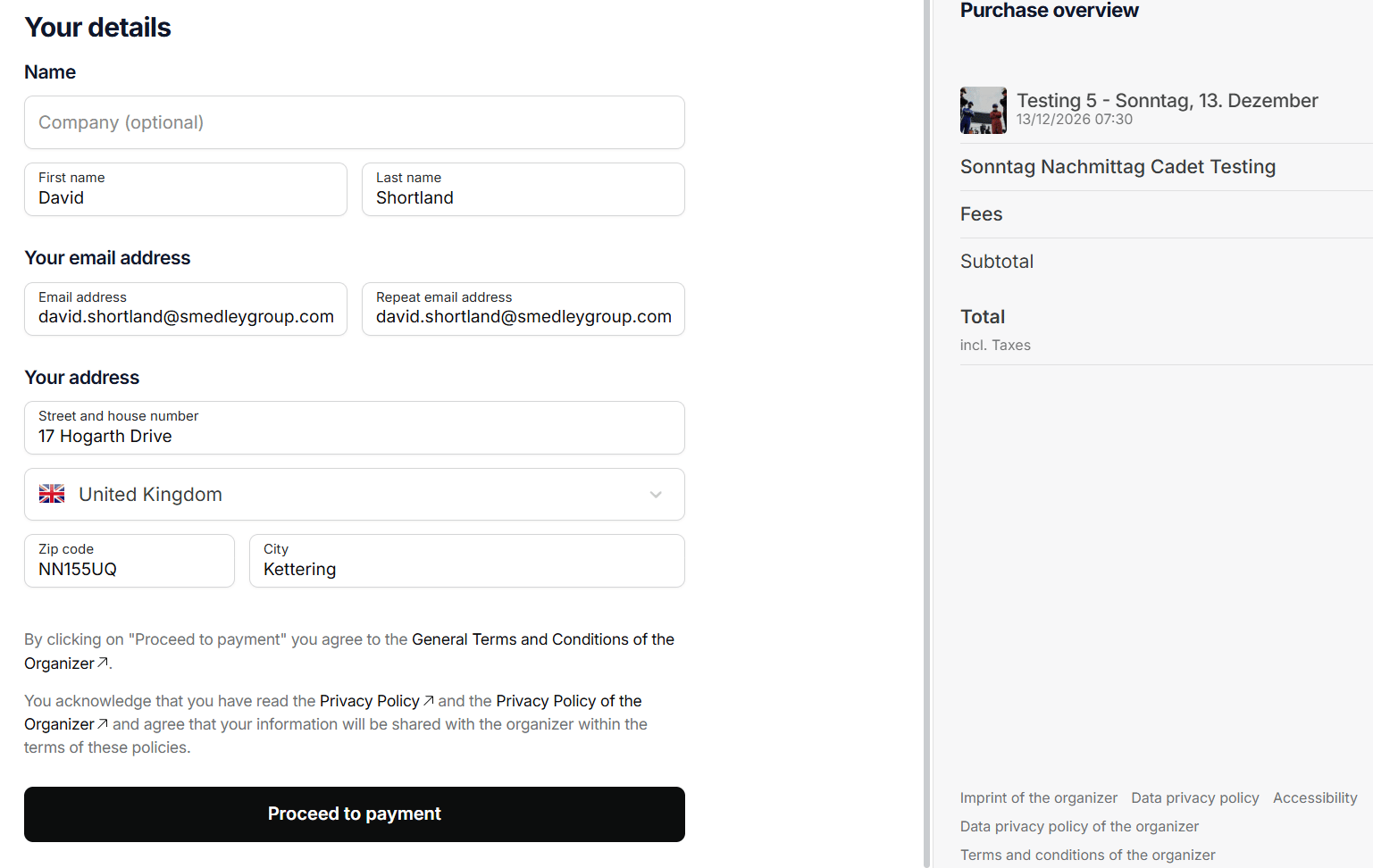
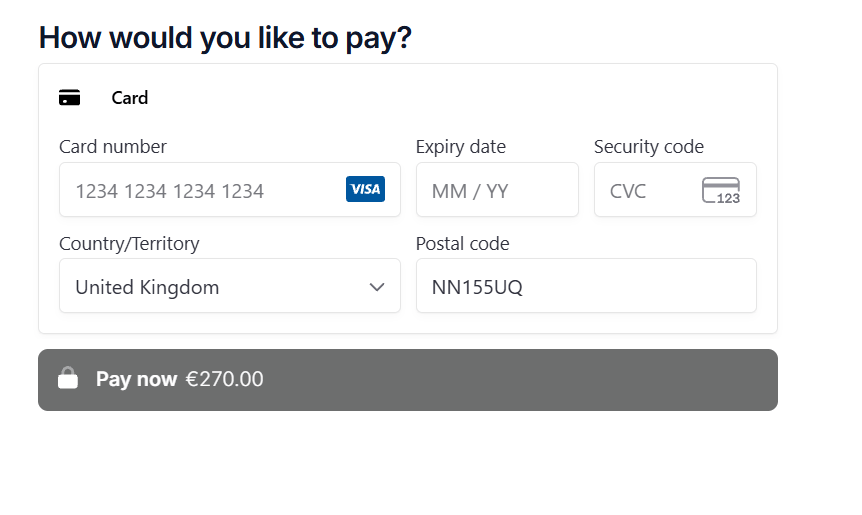

https://shop.{REGION}.fat-kartingleague.com domain for the payment. Enter your details.4
Verify the payment
Go to the Teams notification channel created for this hub.
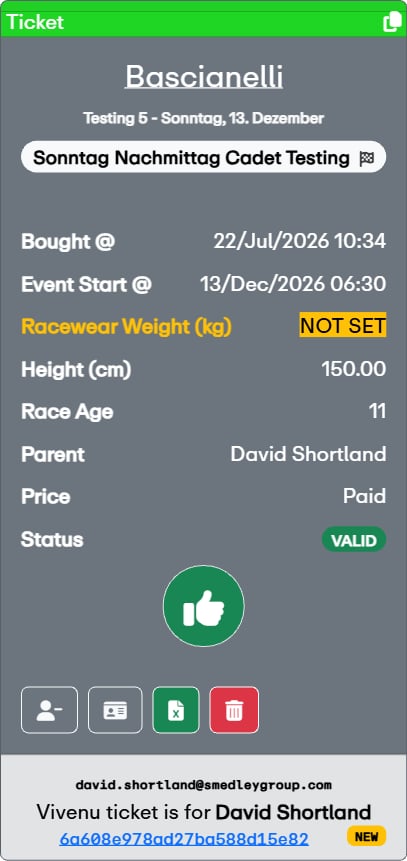
There should be a new notification for the new ticket.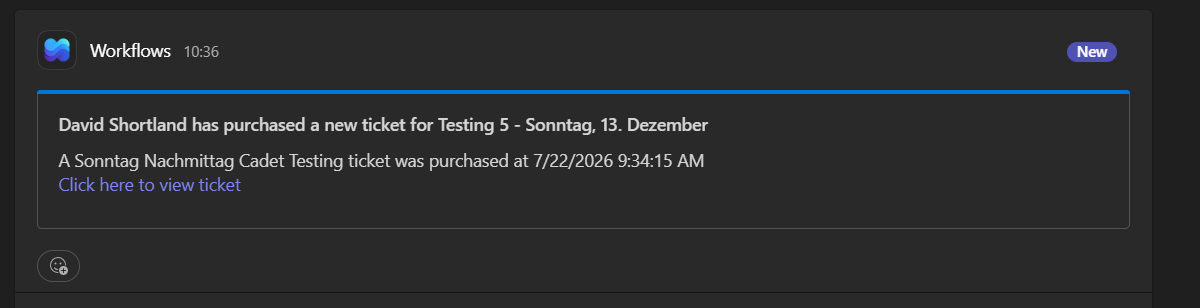
5
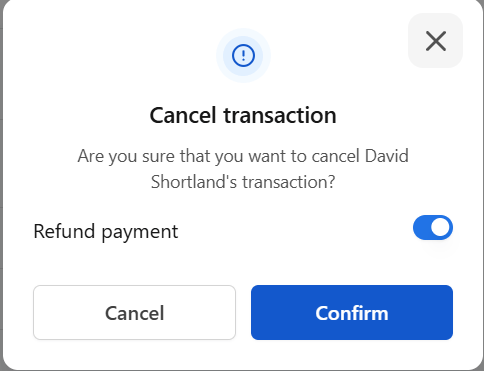
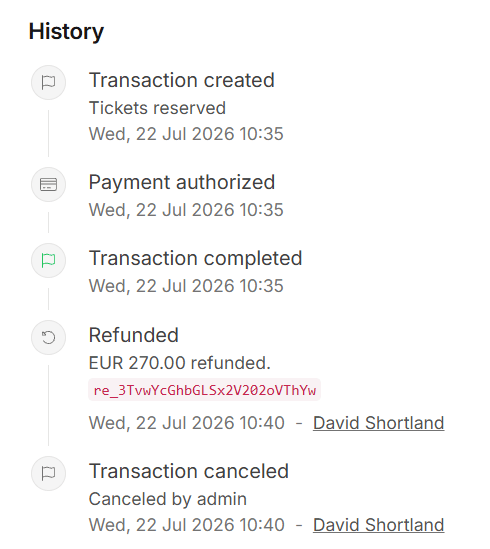
Clean up