

Overview
Vivenu sends customer emails from a verified sender domain. This SOP covers adding a branded email domain to the seller, verifying ownership through DNS records in GoDaddy, creating thehello sender, and setting it as the primary sender.
This SOP assumes you already know how to access and navigate Vivenu. If you need access, email support.
Prerequisites
- Vivenu access for the relevant seller
- Access to the
fat-kartingleague.comDNS in GoDaddy - The hub code confirmed (e.g.
defor Germany,us-cafor US California). See the naming convention for how hub codes are assigned.
Adding the Email Domain
1
Open E-Mail Senders
Navigate to Settings > Communication > E-Mail Senders.
2
Add the domain
Under Manage sender addresses, click Add domain and enter the domain using the convention:Where 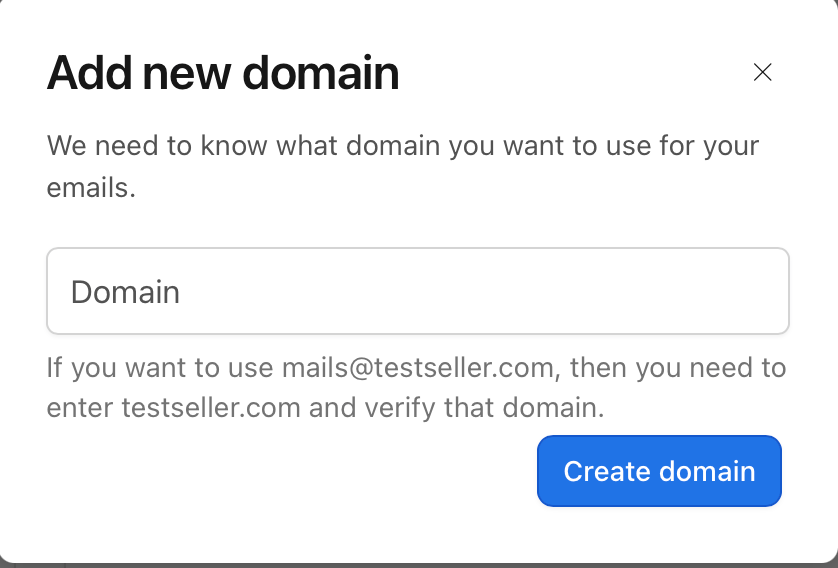
<hub-code> is the code for your hub. For example, for Germany this is de.fat-kartingleague.com.Click Create domain.Verifying the Domain
The new domain shows as VERIFICATION PENDING until its DNS records are added and verified.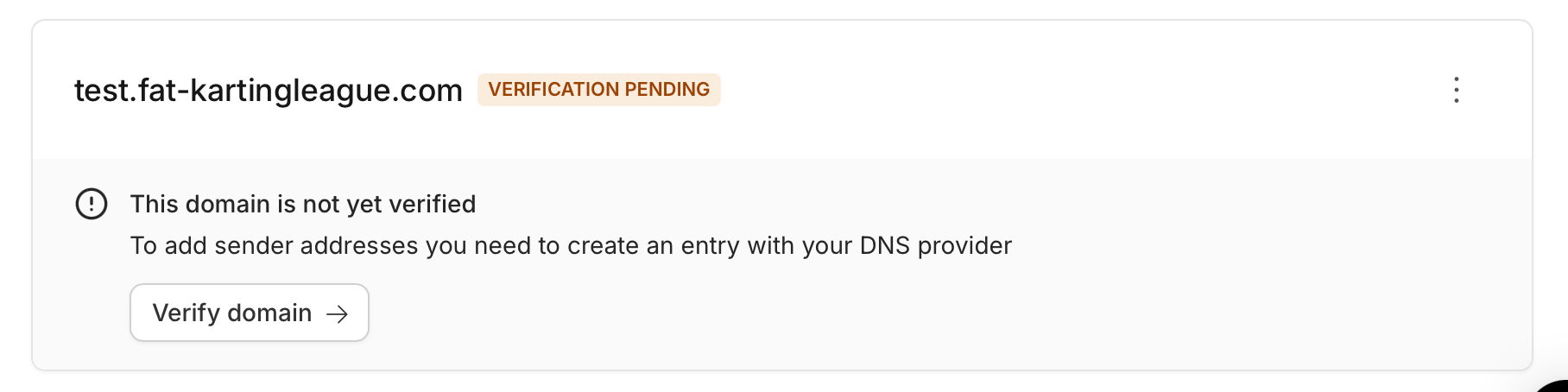
1
Open the DNS records
Click Verify domain. Vivenu displays two records to add: a DKIM record and a ReturnPath record.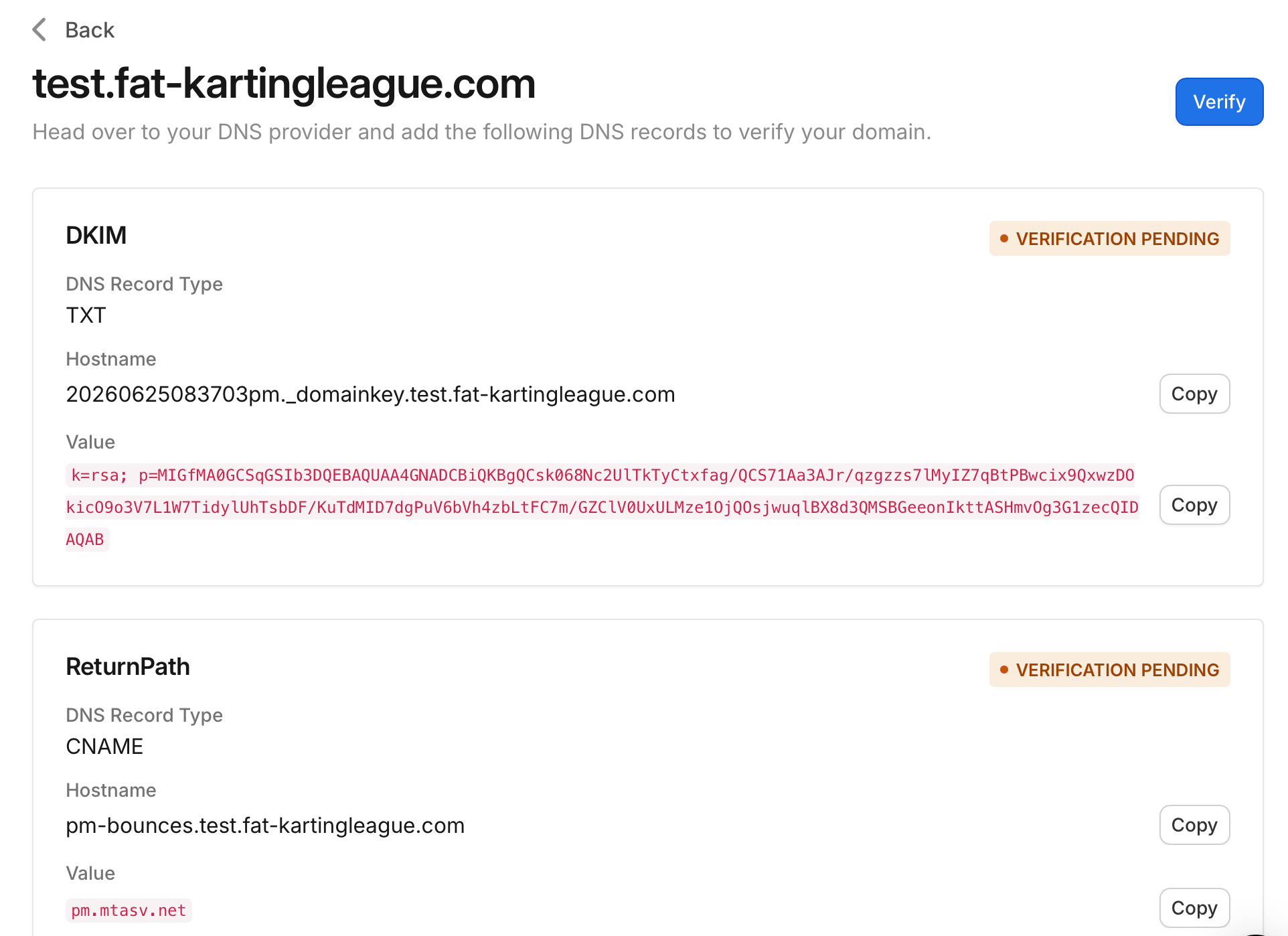
2
Add both records in GoDaddy
In GoDaddy, open the DNS management for
fat-kartingleague.com and add both records exactly as Vivenu provides them:Omit the
.fat-kartingleague.com part from each Hostname. GoDaddy appends the root domain automatically, so the fully qualified records resolve to <selector>._domainkey.<hub-code>.fat-kartingleague.com and pm-bounces.<hub-code>.fat-kartingleague.com.3
Verify and wait for propagation
Back in Vivenu, click Verify to request verification. DNS changes can take time to propagate, so if verification does not succeed immediately, wait and try again until the domain shows VERIFIED.
Adding a Sender
Once the domain is verified, add a sender address within it.1
Open the Add sender dialog
On the verified domain, click Add sender.
2
Set the sender details
Complete the fields as follows: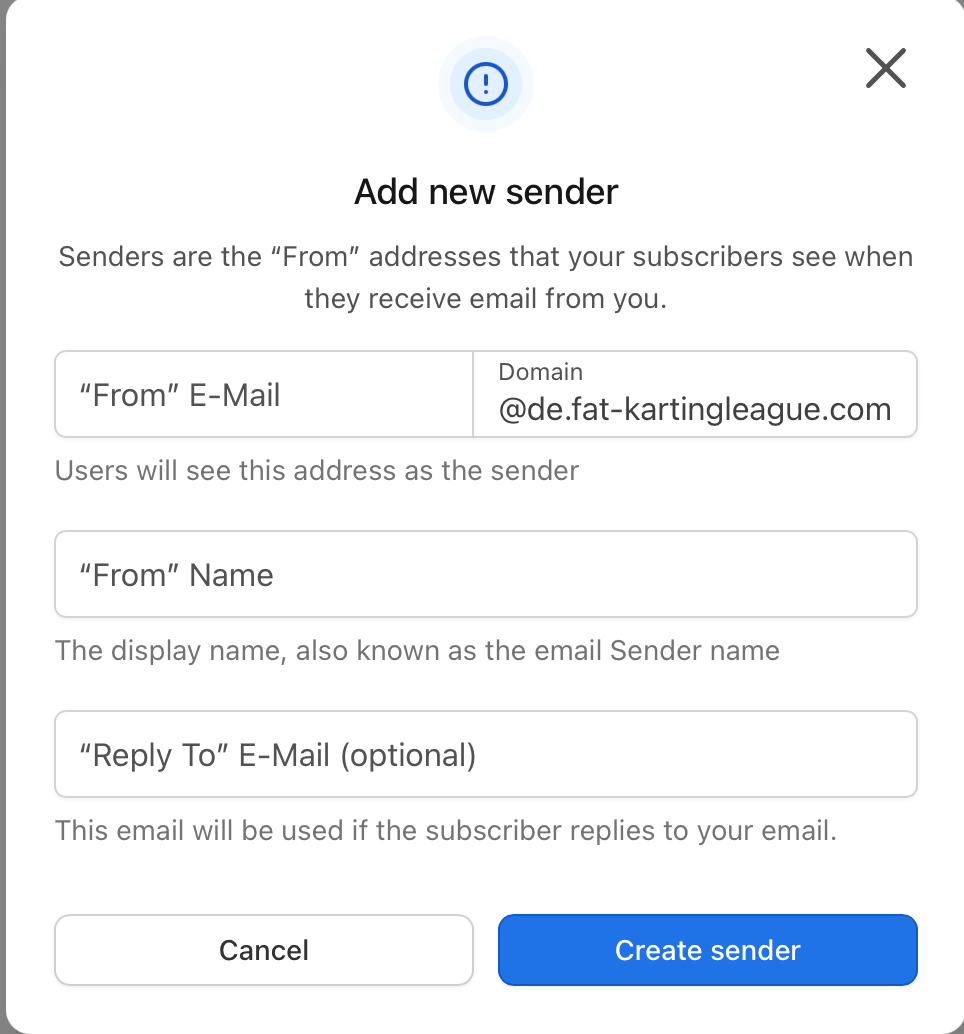
Click Create sender.
Setting the Primary Sender
1
Select the new sender
Under Primary sender, open the E-Mail Senders dropdown and change it from the default to the sender you just created.
2
Save
Click Save. The primary sender should now read 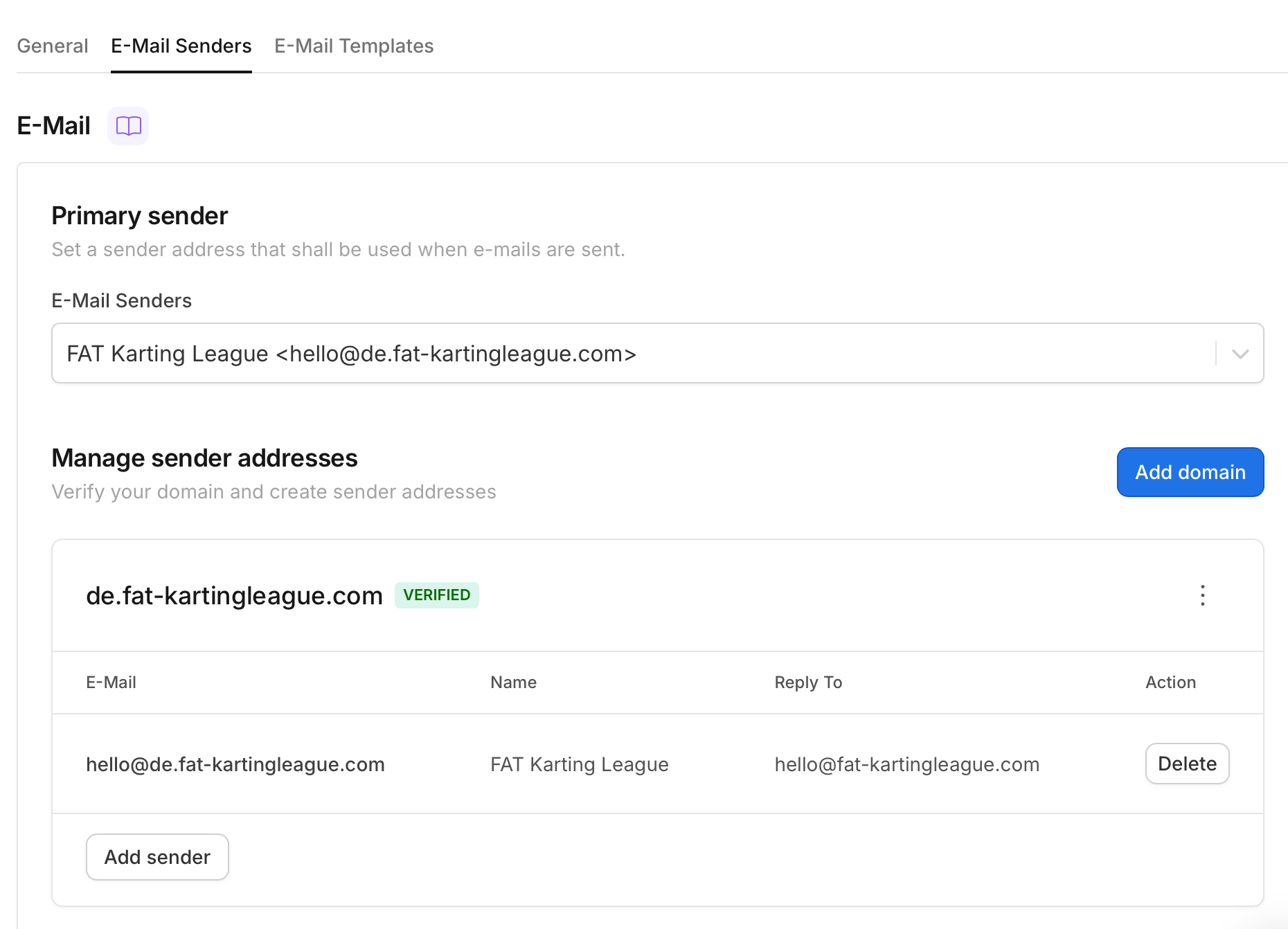
FAT Karting League <hello@<hub-code>.fat-kartingleague.com>.