Overview
Duplicate driver records must be resolved to ensure data integrity across the platform. This SOP covers how to identify duplicates, select the correct record to delete, and merge any associated tickets into the surviving profile.Prerequisites
- OD access
Procedure
1
Navigate to the Drivers tab
Go to the Operator Dashboard and navigate to the Drivers tab.
2
Find the duplicate records
Click Duplicates to filter the driver list and locate the duplicate driver cards.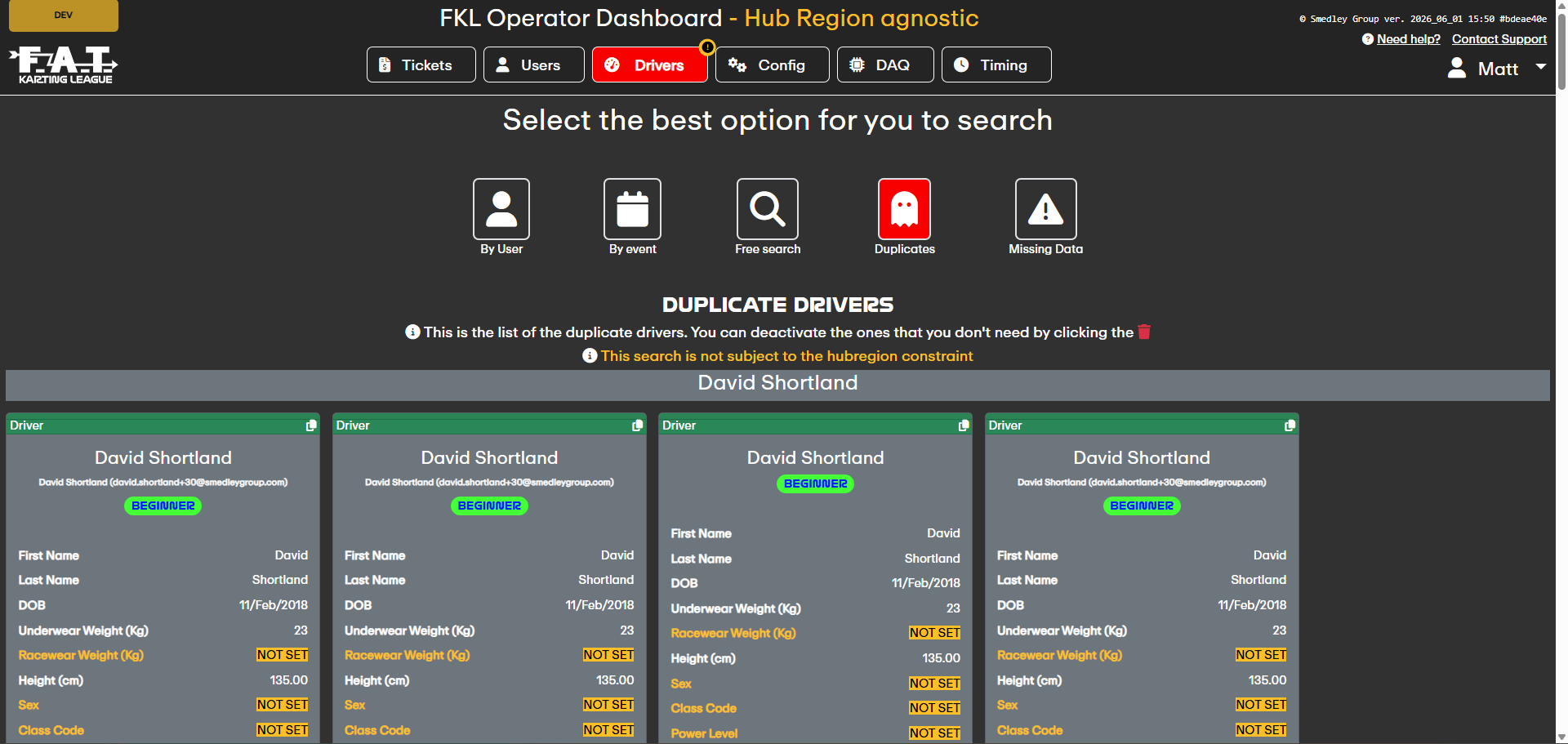
3
Select the driver to delete
Identify which of the two duplicate records should be deleted.
Keep the record that has the correct associated user, parent, tickets, and history. Delete the other one.
4
Click Delete Driver
On the duplicate record you wish to remove, click the red Delete Driver button.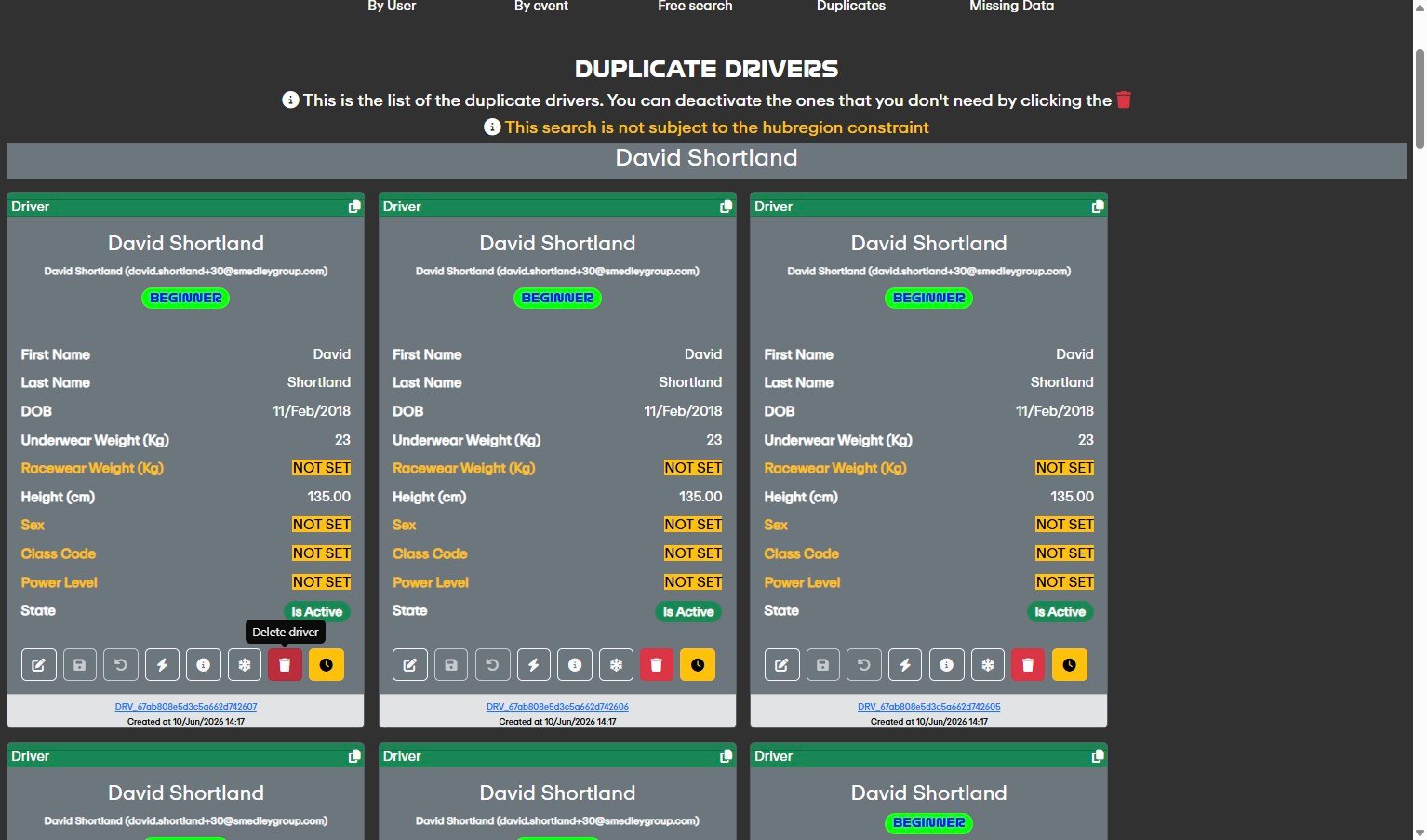
5
Check for associated tickets
Two outcomes are possible:No tickets — the driver can be deleted immediately with no further action required.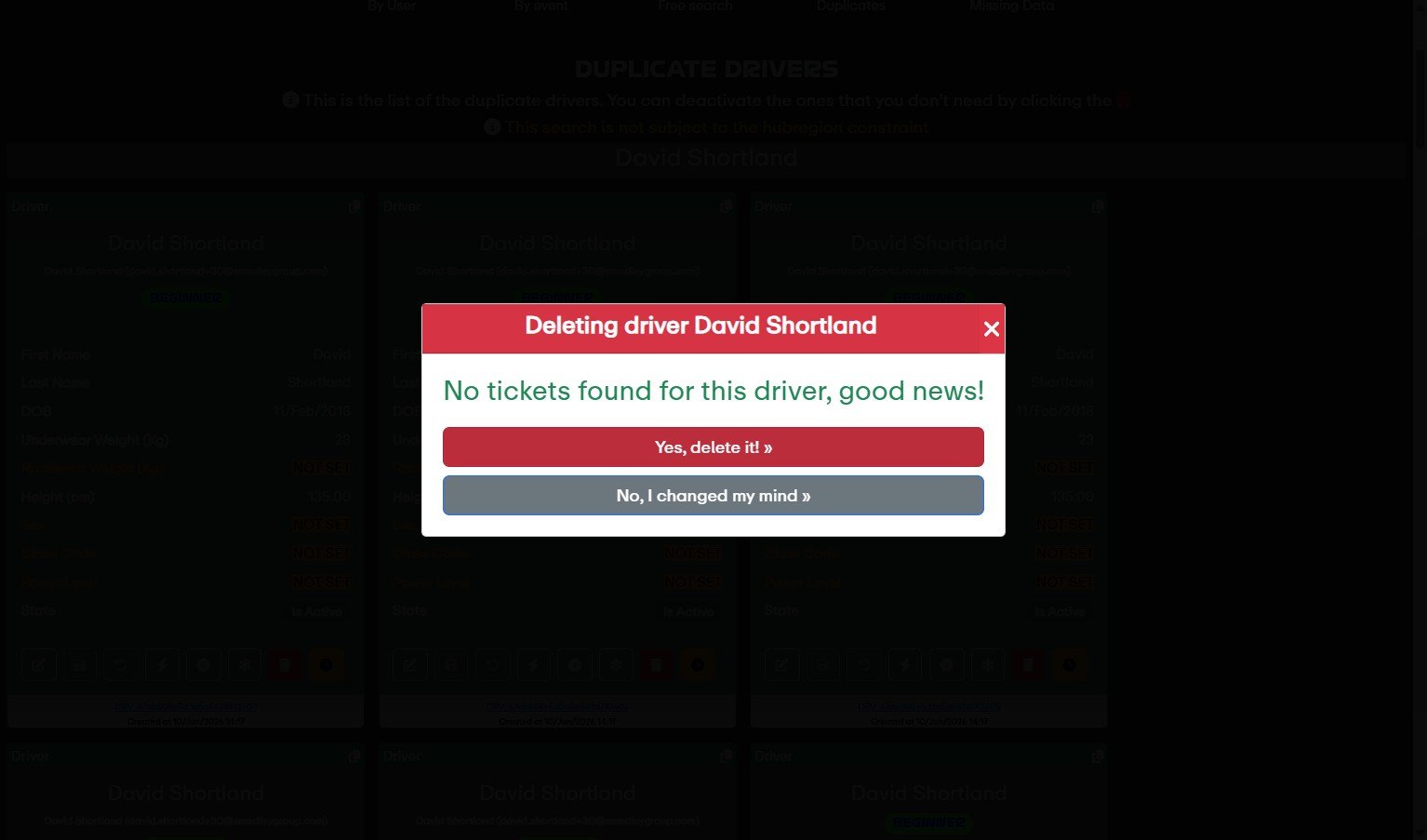

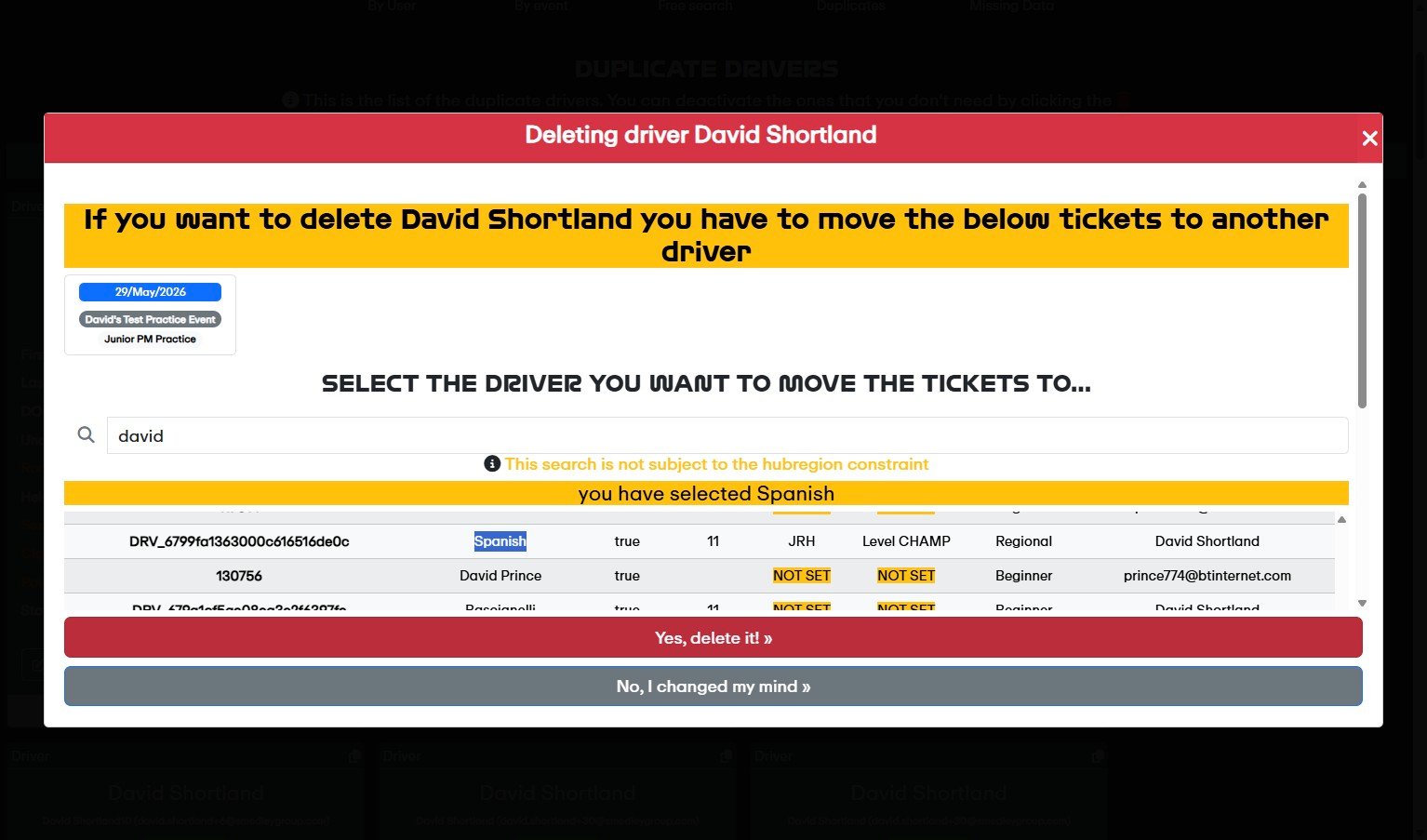
6
Search for the driver to merge into
Search for the name of the driver you wish to merge the tickets into. This should be the other duplicate — the one you are keeping.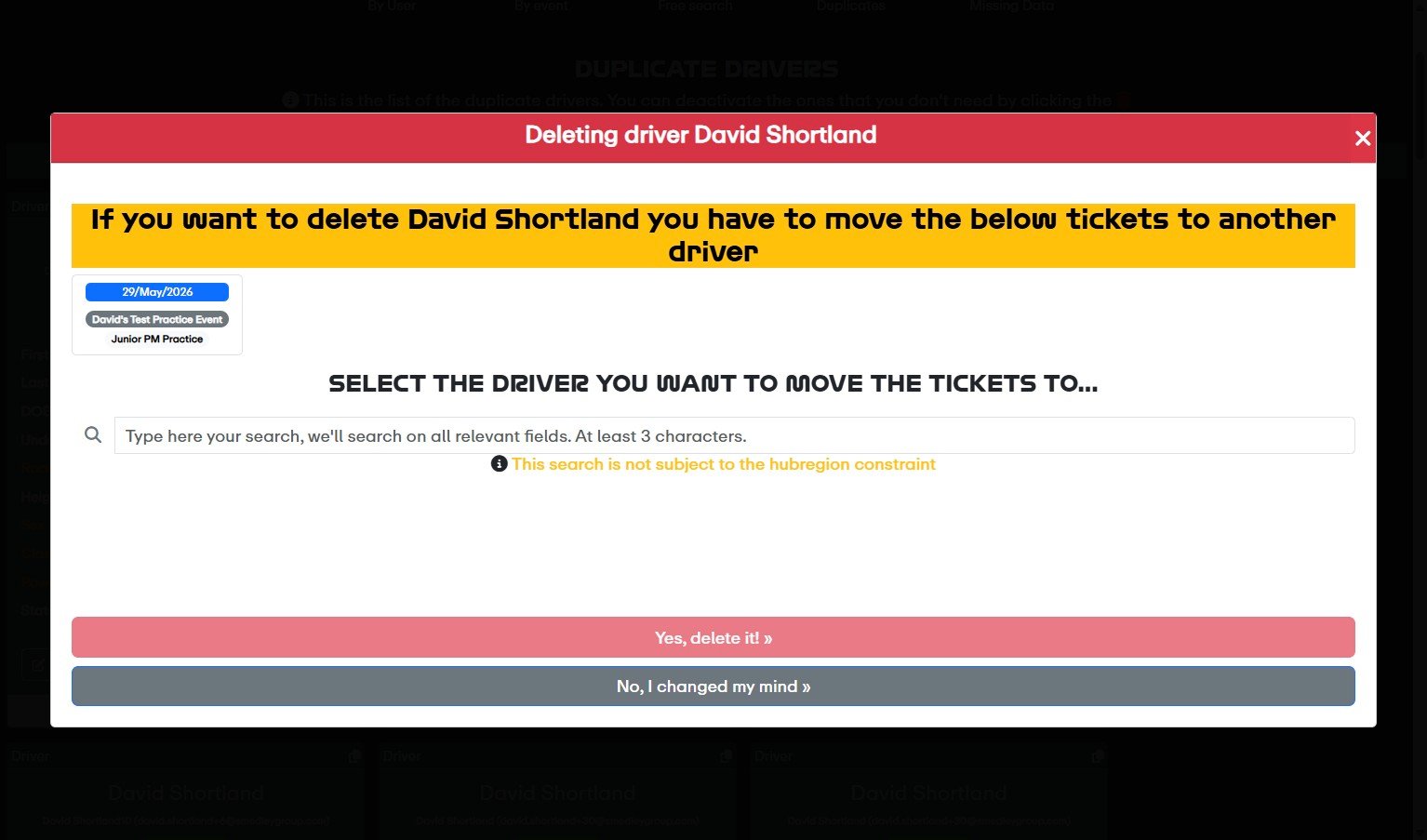
7
Select the driver
Double-click on the driver profile to merge the tickets into.
8
Confirm the merge
The red Yes, delete it button will now become active. Click it to complete the merge and delete the duplicate.