

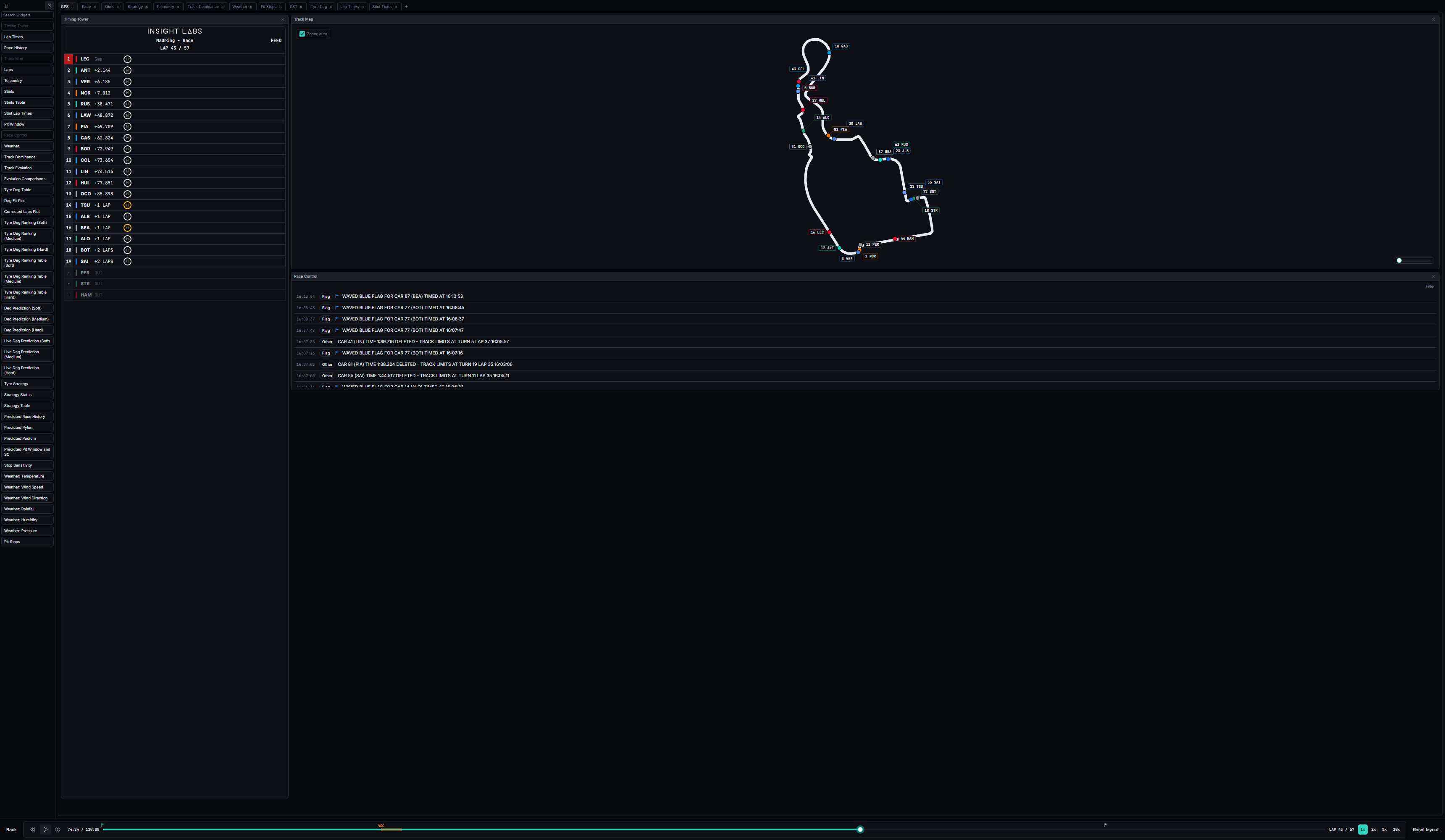
What You Can Do
- Watch a session live. As soon as a session is underway, Watchparty ingests the live feed and streams it to you lap by lap, sector by sector.
- Replay any archived weekend. Once a session has been captured (live or backfilled from historical data), you can open it again later. It behaves identically to a live session: same widgets, same insights, same interactions.
- Compare drivers, tyres and strategies. Overlay lap times, compare telemetry traces, rank tyre degradation, and see how a race’s strategy could have played out under different assumptions.
Live and replayed sessions are indistinguishable to every widget. They arrive over the same channels in the same shape, so nothing in the app has to special-case which one you are looking at.
How the Data Gets to You
Live timing and telemetry arrive from OpenF1’s live feed. Historical weekends are backfilled from FastF1. Both routes converge on the same pipeline before anything is stored: the raw payload is archived first, then a single normalisation step turns it into rows in the platform’s TimescaleDB store, and publishes each normalised record onto a Redis channel for that session. From there, an insights layer subscribes to the same stream and computes the metrics you actually see: tyre degradation models, fuel-corrected lap times, running order, track evolution and more. Each metric is versioned, so you always know which version of the maths produced what you’re looking at. A gateway service is the only door into any of this from outside: it exposes a REST API for historical queries and a WebSocket stream for live updates. The webapp you’re using talks to nothing else, not the database, not Redis directly, only the gateway. Read the full story in Data Journey.Picking a Session
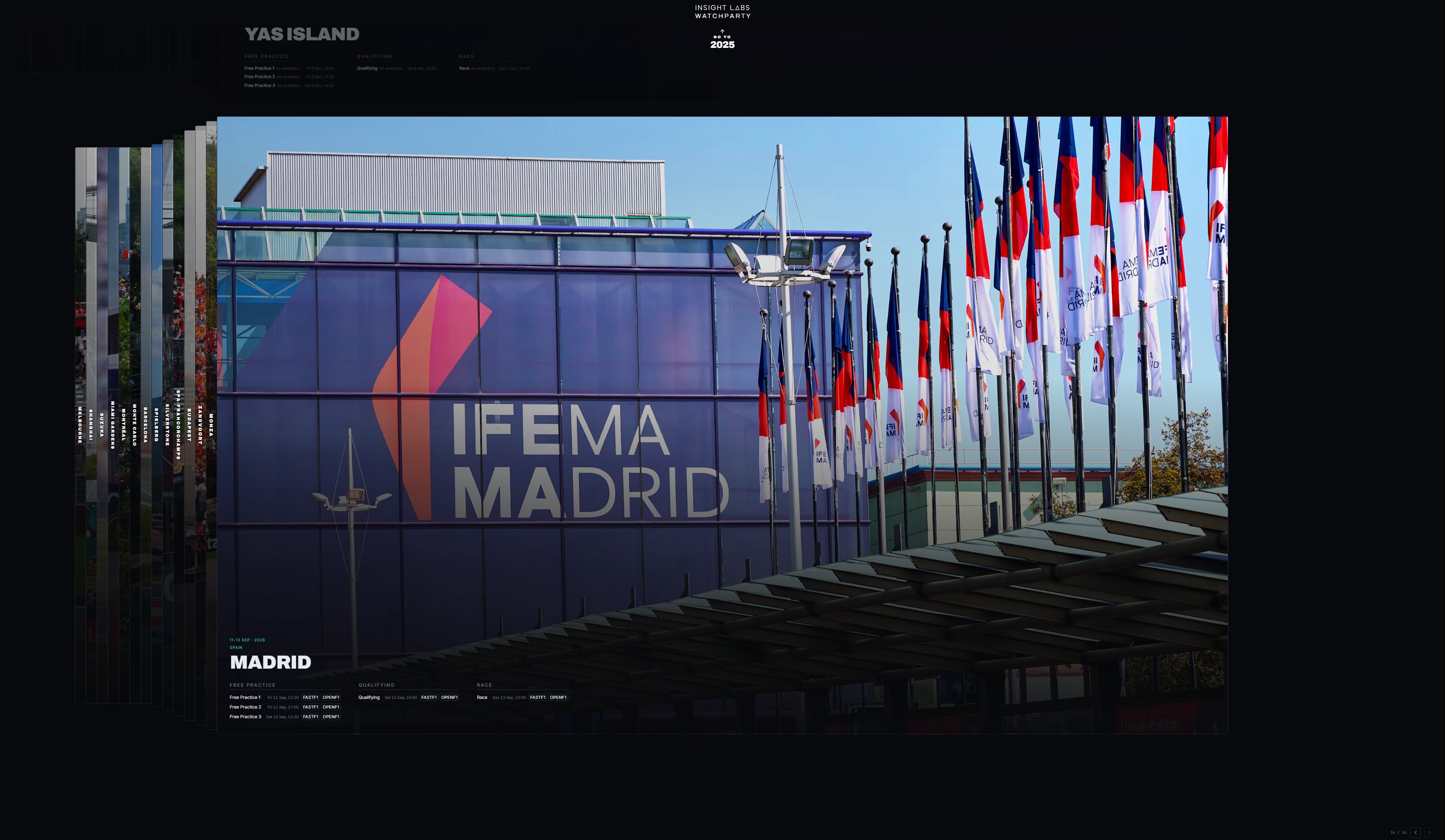
Your Workspace
A session opens as a workbook of tabs. Each tab is a grid of widget windows you can drag, resize and close, and every tab remembers its own arrangement, including where a closed widget sat so it comes back in the same place.- Add a widget from the palette on the left: drag its card onto the grid, or click it to drop it into the first free slot. A widget already open on the tab shows greyed out; one instance per tab.
- Manage tabs in the strip along the top: + adds an empty tab, double-click a name to rename it, and the x deletes it. The last remaining tab cannot be deleted.
- Playback, session and driver selection are shared across tabs, so switching tabs never pauses or reseeks the session.
- Reset layout, at the right of the transport footer, restores the default workbook after a confirmation. It discards every custom tab and arrangement.
Widget Catalogue
Every widget below reads from the same live/replay stream through the gateway. Where a widget only makes sense for certain session types, the card says so; elsewhere it shows a plain not-applicable state rather than an empty chart.Timing
Timing Tower
Live running order, gaps and tyre compound for every driver.
Lap Times
Lap-by-lap comparison across drivers, raw or fuel-corrected.
Race History
Race only: position and gap evolution across the whole race.
Laps
A sortable, filterable table of every recorded lap.
Pit Stops
Every driver’s stop count and pit lane time, in running order.
Track
Track Map
Live car positions plotted on the circuit outline.
Telemetry
Speed, throttle, brake and gear traces compared between laps.
Track Dominance
Which driver is fastest through each section of the lap.
Track Evolution
Race and practice: how much faster the track gets as rubber goes down.
Tyres
Stints
Tyre compound and age across every driver’s stints.
Stints Table
Every stint as a sortable, filterable row, and a drag source.
Stint Lap Times
Raw lap times within a stint, with no analytics in the way.
Tyre Deg Table
Race and practice: degradation rate per driver per stint.
Deg Fit Plot
Race and practice: the degradation curve fitted to a stint.
Corrected Laps Plot
Race and practice: the corrected laps behind the degradation model.
Tyre Deg Ranking
Race and practice: drivers ranked by degradation rate, per compound.
Deg Prediction
The pre-race degradation figure per compound, as the strategy engine was given it.
Live Deg Prediction
The measured median degradation per compound, with its spread.
Tyre Strategy
Race only: every driver’s stint sequence laid out on one timeline.
Strategy
Pit Window
Race only: the live gap picture around one driver, with modelled pit losses.
Race Strategy Tool
Race only: the strategy engine’s seven widgets, from status to predicted finish.
Context
Race Control
Flags, safety cars and official messages as they’re issued.
Weather
Track and air temperature, wind, humidity and rain, as of the playhead.
Weather Charts
The same readings plotted across the whole session.
Concepts
Data Journey
How data gets from OpenF1 and FastF1 to your screen.
Insights and Versioning
How metrics are computed, versioned and kept trustworthy.
Fuel Correction
Why lap times are corrected for fuel load, and where you see it.
Telemetry Degradation
Why some sessions show frozen telemetry, and what it means.