> ## Documentation Index
> Fetch the complete documentation index at: https://playbook.smedleygroup.com/llms.txt
> Use this file to discover all available pages before exploring further.
# Configuring the Webhooks
> How to create the four webhooks (Event, Ticket, Transaction, Checkout) for a Vivenu seller.
## Overview
Vivenu uses webhooks to notify the GKL Platform of events on a seller. The development team creates **four** webhooks per seller: **Event**, **Ticket**, **Transaction**, and **Checkout**. They are configured under **Developer > Webhooks**.
***
## Prerequisites
* Vivenu access for the relevant seller, with **Webhooks** installed under Developer Tools. See [Adding Developer Tools](/software/third-party/vivenu/general/vivenu-developer-tools).
* The hub code confirmed (e.g. `de` for Germany, `us-ca` for US California). See the [naming convention](/software/third-party/vivenu/general/vivenu-naming-convention).
* The HMAC key for this hub, generated in the [New Hub Region SOP](/software/third-party/vivenu/hub-deployment/development/configure-new-hub-region).
***
## Naming Convention
Name each webhook using the format:
```
{CONTROLLER} {REGION_CODE} {ENV}
```
Where `{CONTROLLER}` is `Event`, `Ticket`, `Transaction`, or `Checkout`, `{REGION_CODE}` is the uppercase hub code, and `{ENV}` is `PROD`. For example, the checkout webhook for Germany is `Checkout DE PROD`.
***
## URL
Each webhook uses the same host and stage, changing only the controller segment and the `hubRegion` query parameter:
```
https://en6js5j9r3.execute-api.eu-west-2.amazonaws.com/prod/api/v1/{Controller}/webhook?hubRegion={REGION_CODE}
```
Note the controller segment in the URL is **plural** (`Events`, `Tickets`, `Transactions`, `Checkouts`) while the webhook name is singular. `{REGION_CODE}` is the uppercase hub code, e.g. `DE`.
***
## Creating Each Webhook
Repeat the following for all four webhooks.
Navigate to **Developer > Webhooks** and click **Create**.
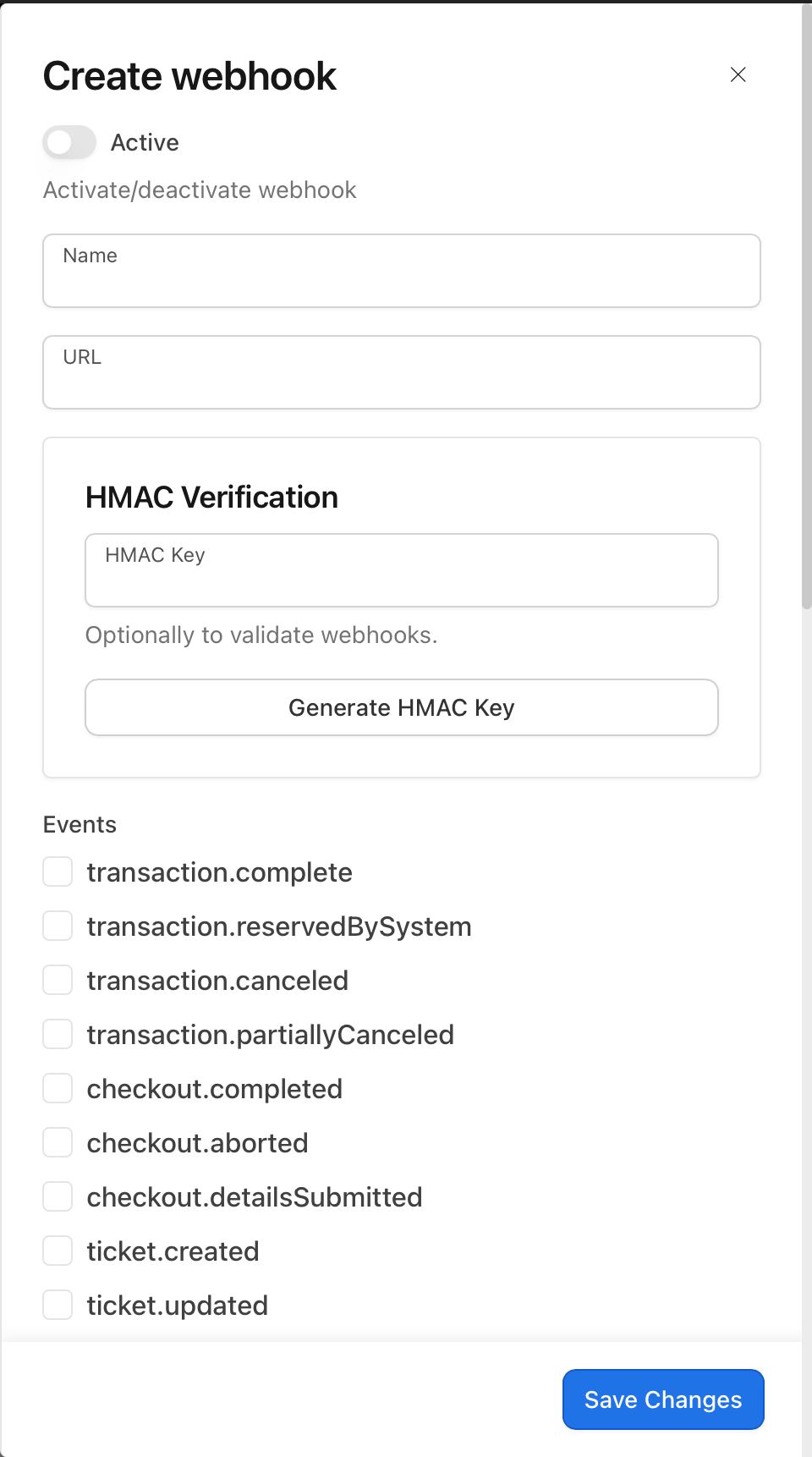 Enter the **Name** and **URL** for this webhook using the conventions above, taking the controller segment and events from the [webhook reference](#webhook-reference) table.
Take the HMAC key generated for this hub in the [New Hub Region SOP](/software/third-party/vivenu/hub-deployment/development/configure-new-hub-region), **base64 encode** it, and paste the encoded value into the **HMAC Key** field.
Do not use the **Generate HMAC Key** button in Vivenu. The key must match the value stored in the GKL API configuration so the receiving API can validate incoming webhooks.
Under **Events**, select the events for this webhook as listed in the [webhook reference](#webhook-reference) below.
Enable the **Active** toggle at the top of the dialog, then click **Save Changes**.
***
## Webhook Reference
| Webhook name | URL controller segment | Events |
| --------------------------- | ---------------------- | --------------------------------------------------------------------------------------------------------------- |
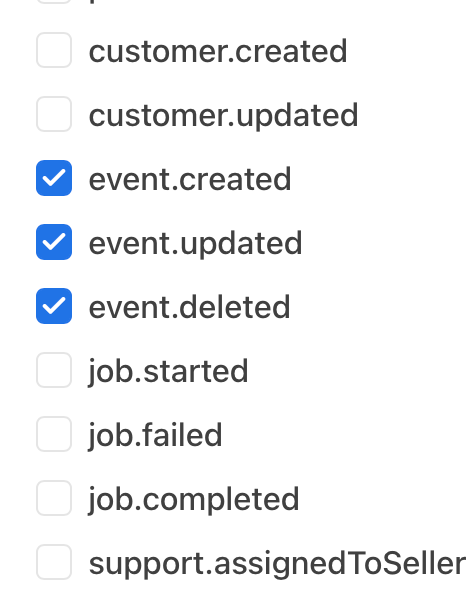
| `Event {REGION} PROD` | `Events` | `event.created`, `event.updated`, `event.deleted` |
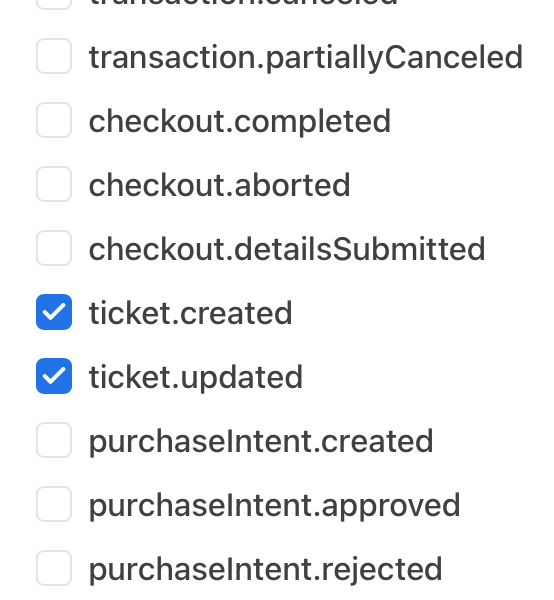
| `Ticket {REGION} PROD` | `Tickets` | `ticket.created`, `ticket.updated` |
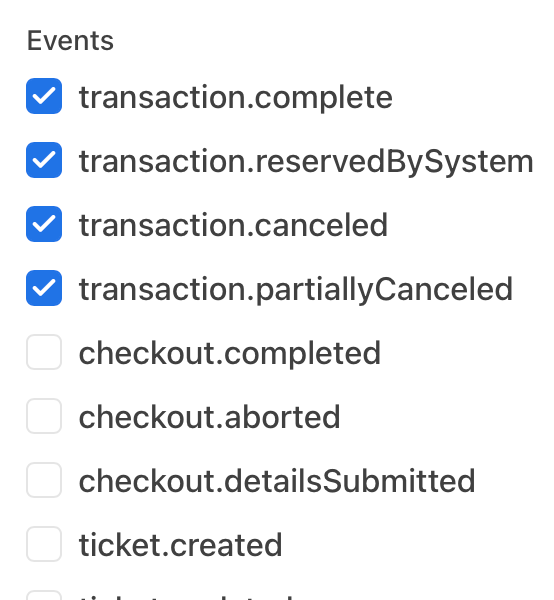
| `Transaction {REGION} PROD` | `Transactions` | `transaction.complete`, `transaction.reservedBySystem`, `transaction.canceled`, `transaction.partiallyCanceled` |
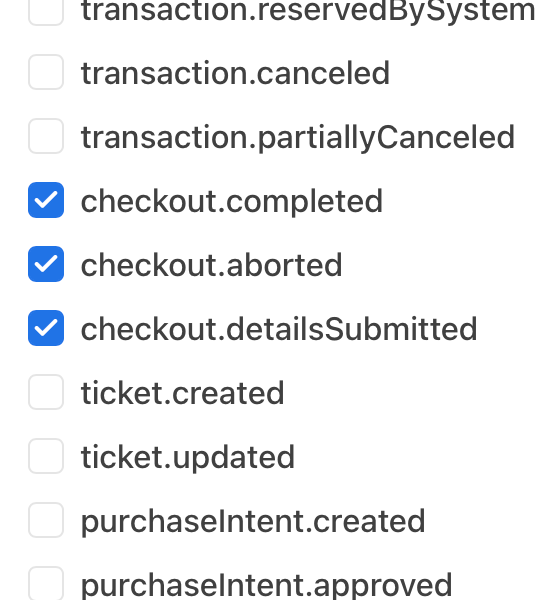
| `Checkout {REGION} PROD` | `Checkouts` | `checkout.completed`, `checkout.aborted`, `checkout.detailsSubmitted` |
The selected events for each webhook should match the screenshots below.
Enter the **Name** and **URL** for this webhook using the conventions above, taking the controller segment and events from the [webhook reference](#webhook-reference) table.
Take the HMAC key generated for this hub in the [New Hub Region SOP](/software/third-party/vivenu/hub-deployment/development/configure-new-hub-region), **base64 encode** it, and paste the encoded value into the **HMAC Key** field.
Do not use the **Generate HMAC Key** button in Vivenu. The key must match the value stored in the GKL API configuration so the receiving API can validate incoming webhooks.
Under **Events**, select the events for this webhook as listed in the [webhook reference](#webhook-reference) below.
Enable the **Active** toggle at the top of the dialog, then click **Save Changes**.
***
## Webhook Reference
| Webhook name | URL controller segment | Events |
| --------------------------- | ---------------------- | --------------------------------------------------------------------------------------------------------------- |
| `Event {REGION} PROD` | `Events` | `event.created`, `event.updated`, `event.deleted` |
| `Ticket {REGION} PROD` | `Tickets` | `ticket.created`, `ticket.updated` |
| `Transaction {REGION} PROD` | `Transactions` | `transaction.complete`, `transaction.reservedBySystem`, `transaction.canceled`, `transaction.partiallyCanceled` |
| `Checkout {REGION} PROD` | `Checkouts` | `checkout.completed`, `checkout.aborted`, `checkout.detailsSubmitted` |
The selected events for each webhook should match the screenshots below.
 ***
## Confirming the Webhooks
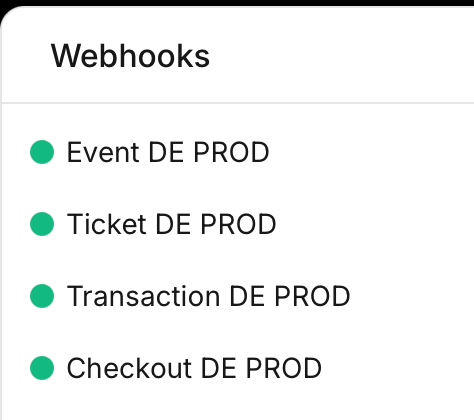
Once all four are saved, the **Webhooks** list should show each one as active.
***
## Confirming the Webhooks
Once all four are saved, the **Webhooks** list should show each one as active.