> ## Documentation Index
> Fetch the complete documentation index at: https://playbook.smedleygroup.com/llms.txt
> Use this file to discover all available pages before exploring further.
# Configuring the Microsoft Teams Notification Team
> How to create the Microsoft Teams team and channel that receives hub notifications, and generate its incoming webhook URL.
## Overview
Each hub has a dedicated Microsoft Teams team and channel that receives notifications from the GKL API. This SOP covers creating that team and channel and generating the incoming webhook URL.
***
## Prerequisites
* Microsoft Teams access with permission to create teams.
* The region code confirmed (e.g. `DE` for Germany). See the [naming convention](/software/third-party/vivenu/general/vivenu-naming-convention).
***
## Creating the Team and Channel
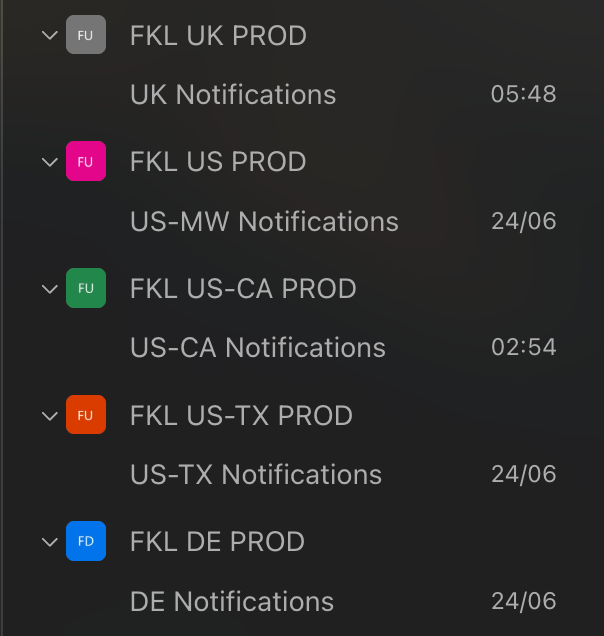
Create a new team named:
```
FKL PROD
```
Where `` is the uppercase region code. For example, for Germany this is `FKL DE PROD`.
Set the first channel's name to:
```
Notifications
```
For example, for Germany this is `DE Notifications`.
 ***
## Generating the Webhook URL
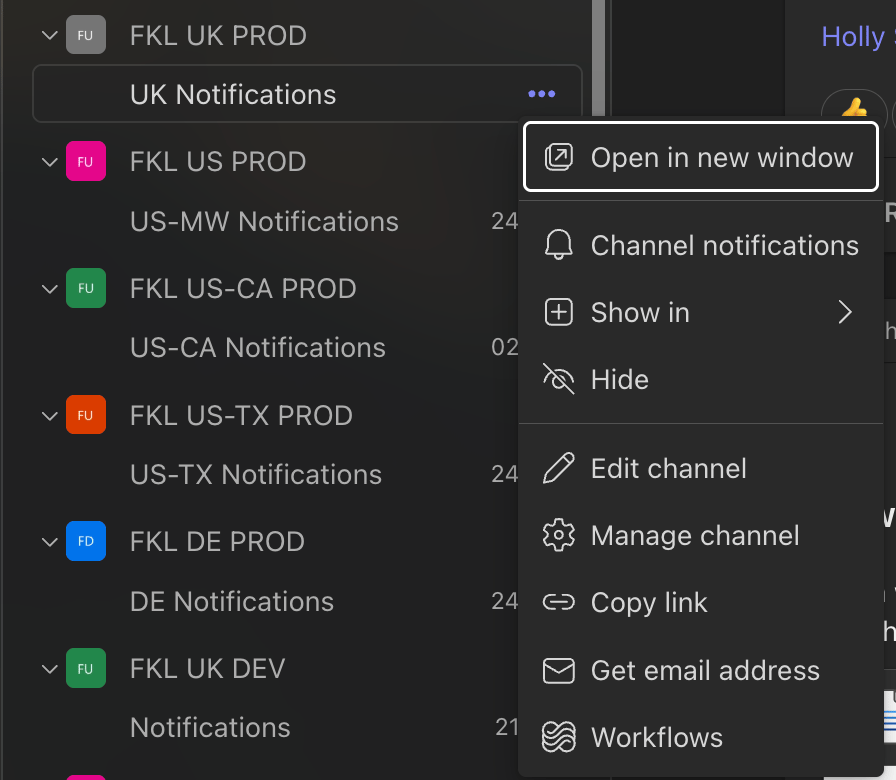
On the new team's first channel, click the **...** dropdown and select **Workflows**.
***
## Generating the Webhook URL
On the new team's first channel, click the **...** dropdown and select **Workflows**.
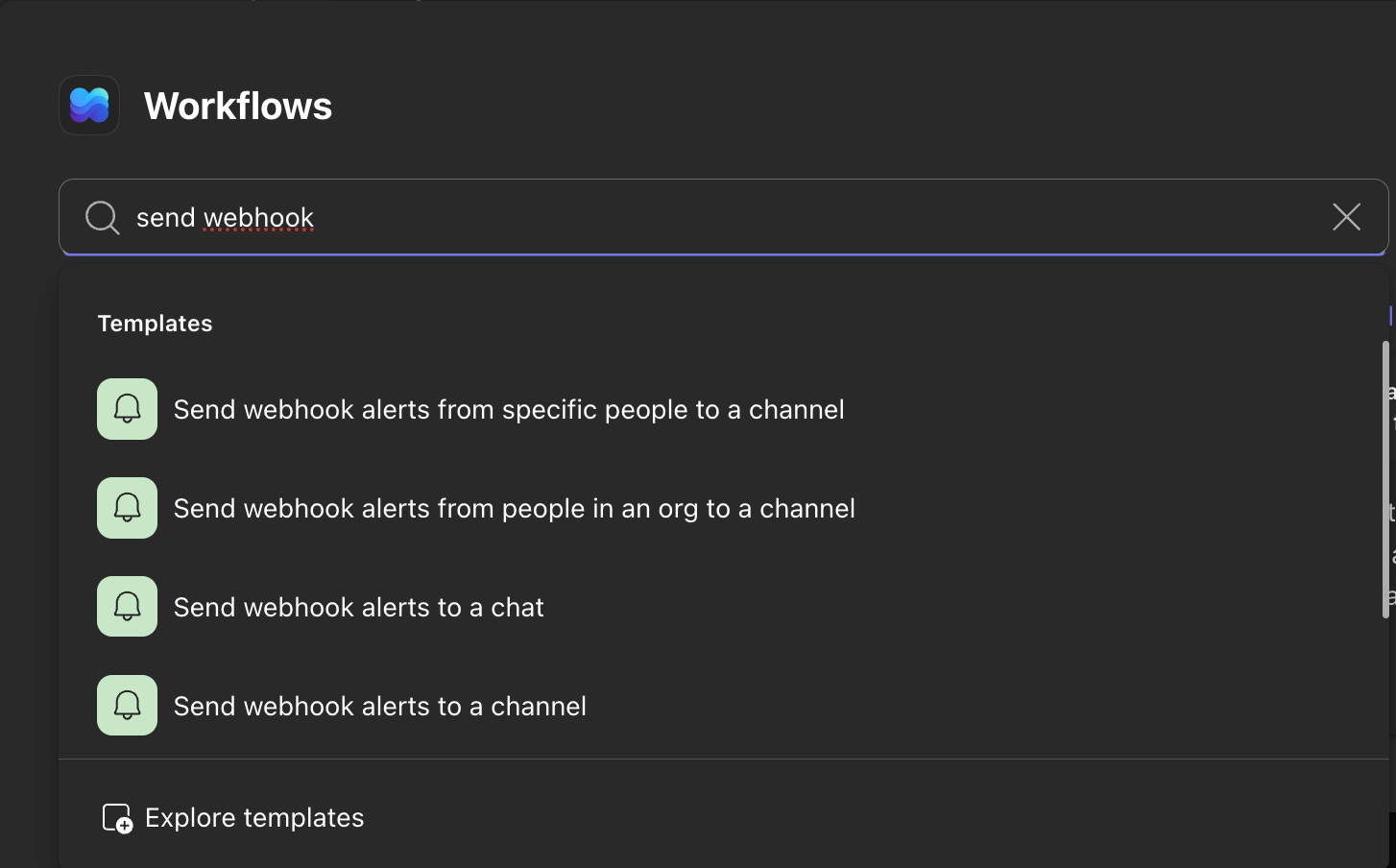
 Search for **send webhook** and select **Send webhook alerts to a channel**.
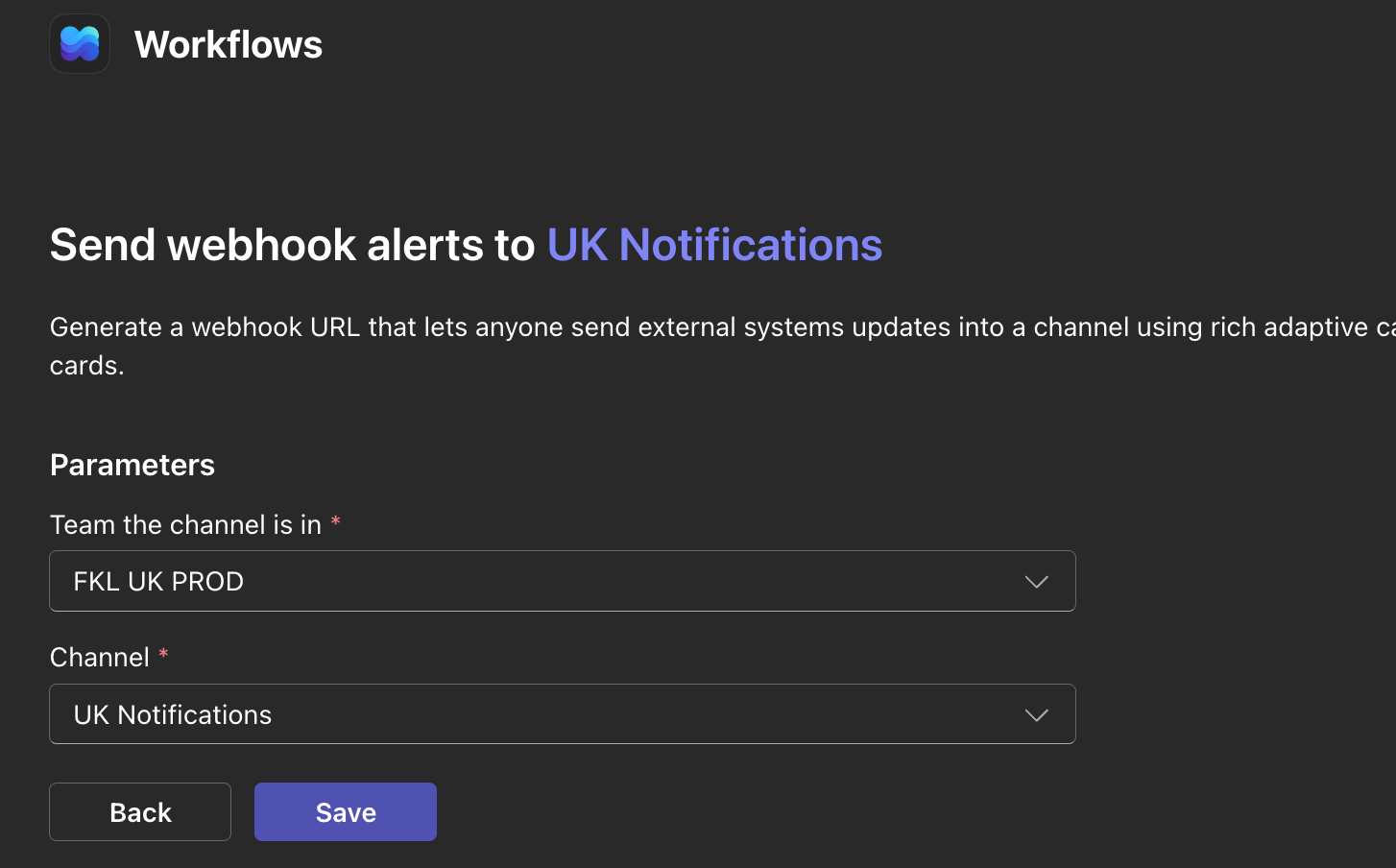
 The default options should already match the team and channel you just created. Confirm they are correct before continuing.
 Copy the webhook URL and save the workflow.
Keep the webhook URL safe. It is added to the GKL API configuration in the [New Hub Region SOP](/software/third-party/vivenu/hub-deployment/development/configure-new-hub-region).
***
## Adding Members
Do this last. Only add members once the full hub is configured and the seller has been tested, so notifications do not reach the team before the hub is live.
Add the following roles as members of the team:
* CEO
* COO
* CFO
* Head of Finance
* Finance Team Members
* Hub Manager
* CEL/EC
* Head of Advanced Tech
* Development Team within AT
* Head of Sales & Marketing
* Sales & Marketing Team Members
Copy the webhook URL and save the workflow.
Keep the webhook URL safe. It is added to the GKL API configuration in the [New Hub Region SOP](/software/third-party/vivenu/hub-deployment/development/configure-new-hub-region).
***
## Adding Members
Do this last. Only add members once the full hub is configured and the seller has been tested, so notifications do not reach the team before the hub is live.
Add the following roles as members of the team:
* CEO
* COO
* CFO
* Head of Finance
* Finance Team Members
* Hub Manager
* CEL/EC
* Head of Advanced Tech
* Development Team within AT
* Head of Sales & Marketing
* Sales & Marketing Team Members