> ## Documentation Index
> Fetch the complete documentation index at: https://playbook.smedleygroup.com/llms.txt
> Use this file to discover all available pages before exploring further.
# Configuring the API Key
> How to create the GKL Platform API key on a Vivenu seller.
## Overview
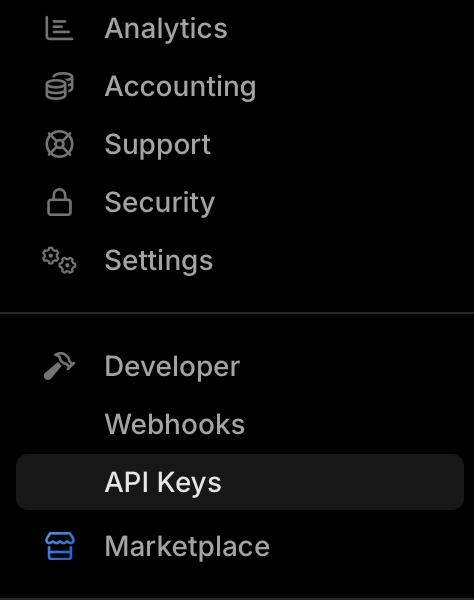
The GKL Platform uses an API key to call Vivenu for a seller. This SOP covers creating that key. It is configured under the **Developer** menu in the left hand sidebar.
 This SOP assumes you already know how to access and navigate Vivenu. If you need access, [email support](mailto:advanced-technology-c0a6ecefe97b@intake.linear.app).
***
## Prerequisites
* Vivenu access for the relevant seller, with **API Keys** installed under Developer Tools. See [Adding Developer Tools](/software/third-party/vivenu/general/vivenu-developer-tools).
***
## Adding the API Key
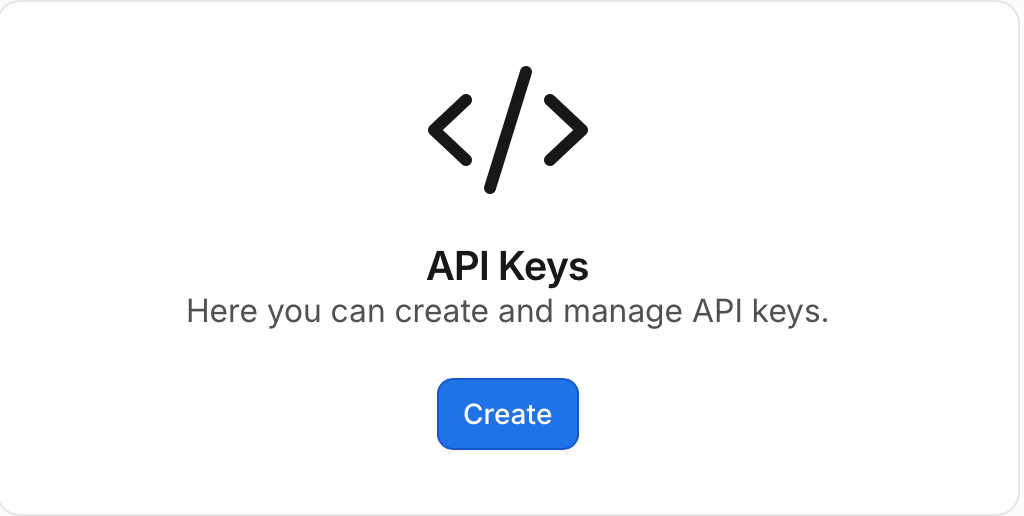
Navigate to **Developer > API Keys** and click **Create**.
This SOP assumes you already know how to access and navigate Vivenu. If you need access, [email support](mailto:advanced-technology-c0a6ecefe97b@intake.linear.app).
***
## Prerequisites
* Vivenu access for the relevant seller, with **API Keys** installed under Developer Tools. See [Adding Developer Tools](/software/third-party/vivenu/general/vivenu-developer-tools).
***
## Adding the API Key
Navigate to **Developer > API Keys** and click **Create**.
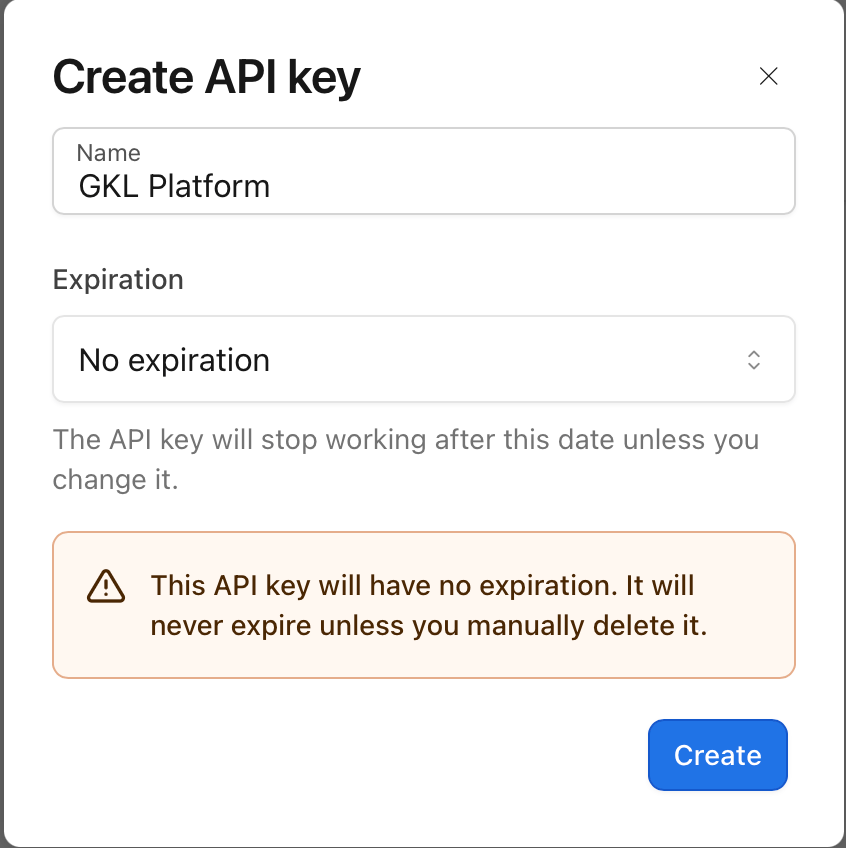
 Set the **Name** to `GKL Platform` and leave **Expiration** as **No expiration**.
Click **Create**.
Set the **Name** to `GKL Platform` and leave **Expiration** as **No expiration**.
Click **Create**.
 When the key value is shown, copy it and temporarily save it somewhere local. You will need it for the GKL API configuration (see the [New Hub Region SOP](/software/third-party/vivenu/hub-deployment/development/configure-new-hub-region)).
Copy the key now. Once you move past the copy option, the value cannot be viewed again and you will have to create a new key.
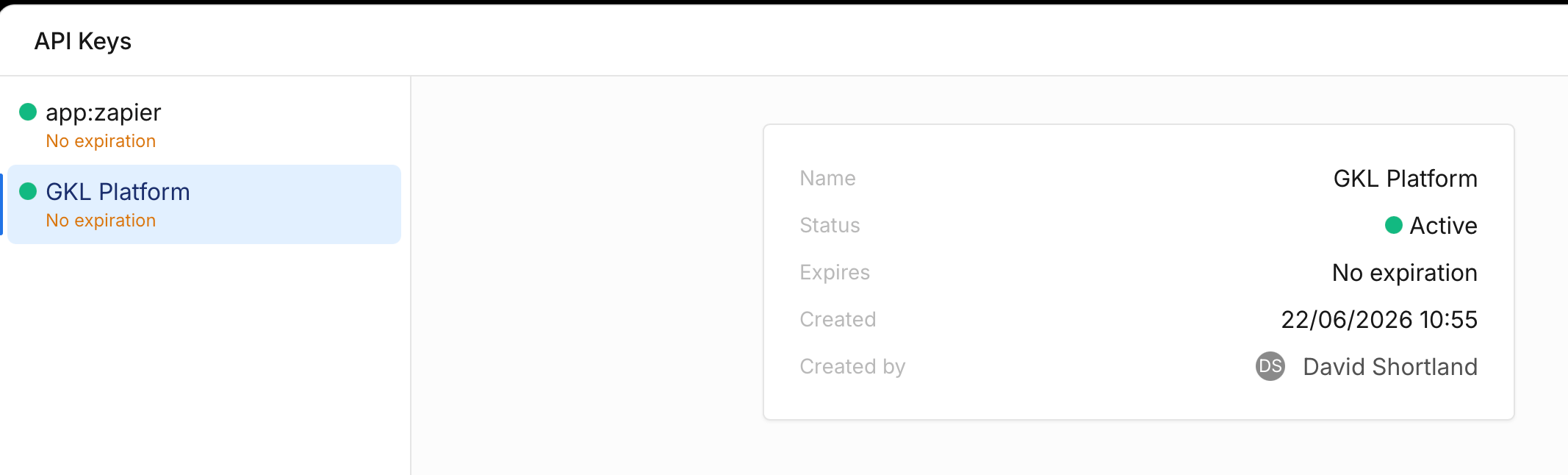
The new `GKL Platform` key should now appear in the list with a status of **Active**.
When the key value is shown, copy it and temporarily save it somewhere local. You will need it for the GKL API configuration (see the [New Hub Region SOP](/software/third-party/vivenu/hub-deployment/development/configure-new-hub-region)).
Copy the key now. Once you move past the copy option, the value cannot be viewed again and you will have to create a new key.
The new `GKL Platform` key should now appear in the list with a status of **Active**.